
Google Business Profile: The Complete Setup and Optimization Guide
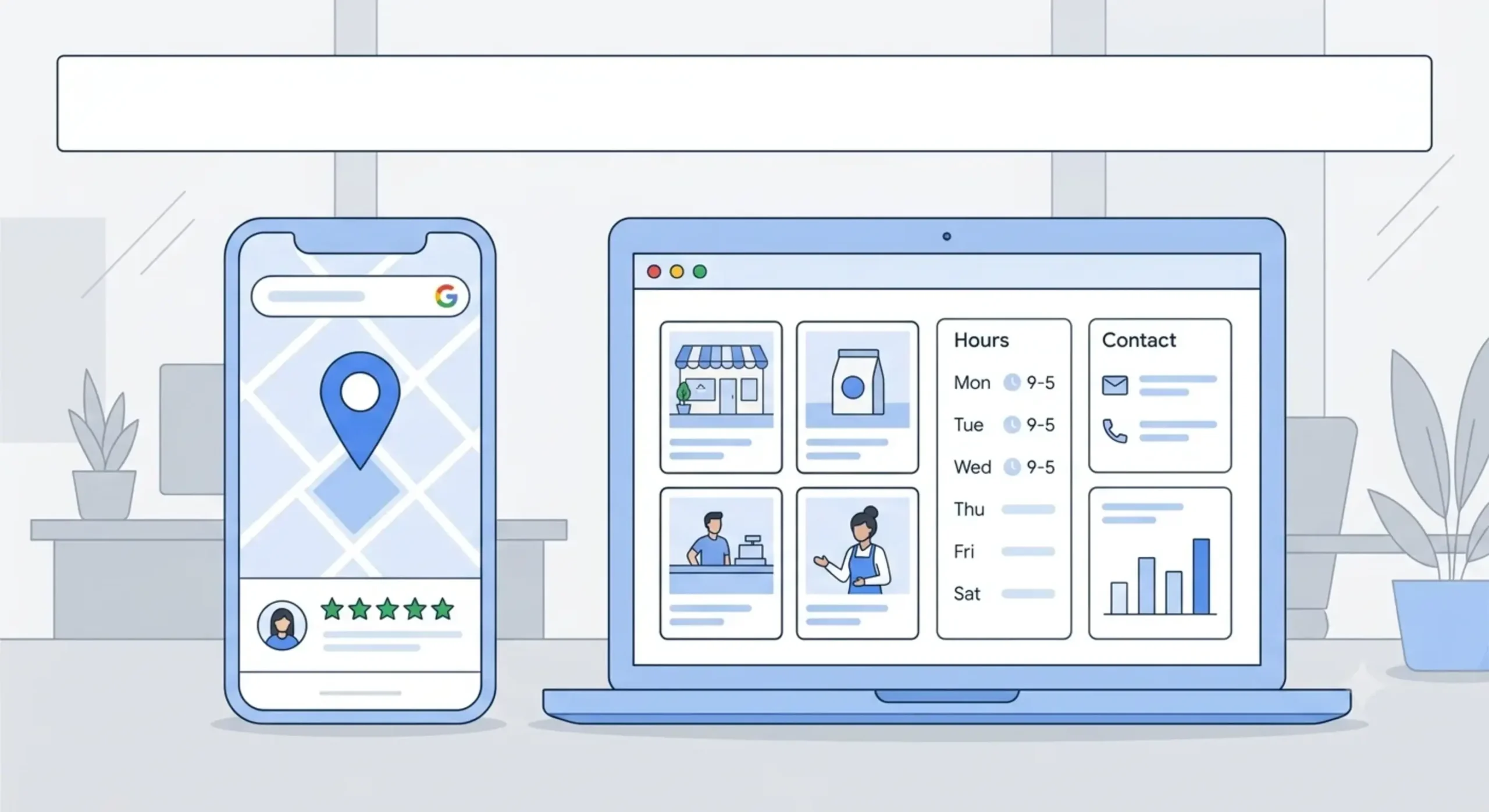
When someone searches for your business by name, or for the kind of product or service you sell nearby, the panel that shows up on the right side of Google, complete with your hours, reviews, photos, and a map pin, is your Google Business Profile. If that panel is missing, thin, or outdated, you’re handing potential customers to a competitor whose profile looks more complete, often for no better reason than the fact that they filled theirs in properly.
A Google Business Profile is a free listing that lets you control how your business appears across Google Search and Google Maps, including your name, address, phone number, hours, photos, posts, and customer reviews. It’s one of the highest-leverage, lowest-cost things a local business can set up, and it takes under an hour to do properly.
Why Google Business Profile Matters for Local SEO
- It’s often the first thing people see. For local, “near me,” and branded searches, your profile can appear before your own website does.
- It builds instant credibility. Reviews, photos, and complete information signal a real, active, trustworthy business.
- It drives real action. A large share of people who search locally on their phone visit or contact a business within a day.
- It’s free advertising real estate. Posts, offers, and Q&A sections let you communicate directly on the search results page, no ad spend required.
How to Create a Google Business Profile
- Go to Google Business Profile Manager and sign in with an existing Google account, or create one specifically for the business.
- Enter your business name exactly as it appears in the real world, avoid adding keywords or extra descriptors that aren’t part of your actual name.
- Choose the most accurate business category available, this affects which searches you show up for.
- Add your location. If customers don’t visit you physically, such as with a home-based or service-area business, you can hide the address and set a service area instead.
- Fill in your phone number, website, and hours of operation as completely and accurately as possible.
How to Verify Your Business
Verification confirms to Google that you actually run the business you’re claiming, and it’s required before your profile becomes fully visible with all features enabled. Depending on the type of business, Google may verify you by phone call, text message, email, or a postcard mailed to your business address. Once verified, a small checkmark appears next to your listing, and customers can see the profile is legitimate rather than an unclaimed placeholder.
Optimizing Your Profile Once It’s Live
Business Information
Keep your name, address, and phone number (NAP) identical everywhere online, your website, social profiles, and directory listings included. Inconsistent details across the web are one of the most common reasons local rankings suffer.
Photos
Upload clear, high-quality photos of your location, products, team, and logo. Profiles with strong photo galleries consistently get more clicks and direction requests than profiles with only a handful of images or none at all.
Products and Services
List out what you actually sell or offer, with clear names and short descriptions. This helps you surface in more specific searches beyond just your business name or general category.
Posts
Use Google Posts to share offers, updates, and events directly on your listing. Businesses that post regularly tend to look more active and current to anyone browsing search results.
Q&A Section
Anyone can ask or answer questions on your profile. Pre-load a handful of common questions yourself so accurate answers appear before an uninformed one does.
Managing Reviews the Right Way
- Respond to both positive and negative reviews, not just the negative ones, gratitude matters as much as damage control.
- Never argue publicly with a reviewer, even if their account of events feels unfair. Acknowledge the issue and offer to make it right.
- Keep responses short and consistent, a long, defensive reply reads worse than a brief, calm one.
- Watch for repeated complaints. One review about slow service is an outlier; five reviews about the same issue is a pattern worth fixing.
Using Google Business Profile Manager
Google Business Profile Manager is the dashboard where you handle everything: editing business information, uploading photos, replying to reviews, publishing posts, tracking calls and messages, and reviewing performance insights, including how customers found you and what they did next. If you manage more than one location, or work with a marketing team or agency, the manager also lets you add other users with different permission levels rather than sharing a single login.
Common Mistakes to Avoid
- Leaving the profile unclaimed, which lets anyone suggest edits to your business information.
- Choosing a broad or inaccurate business category instead of the most specific one available.
- Stuffing keywords into the business name field, which violates Google’s guidelines and risks suspension.
- Letting hours, especially holiday hours, go out of date, which frustrates customers who show up when you’re closed.
- Ignoring reviews entirely, silence reads as indifference to both happy and unhappy customers.
What If You Need to Remove or Delete a Listing?
If a business has closed permanently, or a duplicate listing exists, it can be marked as closed or removed directly from Google Business Profile Manager under the business’s settings. Removing a profile is different from simply hiding it temporarily, so it’s worth double-checking whether pausing or updating hours solves the problem before deleting a listing outright, since a deleted profile loses its accumulated reviews and history.
The Bottom Line
A Google Business Profile is free, fast to set up, and directly shapes how potential customers decide whether to choose your business or the one listed next to it. Claim it, verify it, fill in every section completely, and keep it updated, and it will keep working quietly in the background every single time someone searches for what you offer.
FAQs
What is a Google Business Profile?
A free listing that controls how your business appears on Google Search and Google Maps, including hours, location, photos, and reviews.
How do I create a Google Business Profile?
Sign in to Google Business Profile Manager, enter your business details and category, and complete Google’s verification process to activate the listing.
Is Google Business Profile free?
Yes, creating and managing a standard Google Business Profile is completely free for any business.
How do I log in to Google Business Profile Manager?
Sign in with the Google account used to create or claim the listing at the Google Business Profile Manager sign-in page.
Can I delete a Google Business Profile?
Yes, a listing can be marked closed or removed from within Business Profile Manager, though this also removes its accumulated review history.